
The short answer: No. Native Canvas cannot see your other open tabs, read your search history, or spy on what you’re looking at.
However, it does know when you click away from the exam screen.
If you’re panicking and wondering can Canvas see active web browser tabs during quizzes, here is what’s actually happening behind the scenes:
- No hidden tab spying: Without third-party proctoring tools like Honorlock or Respondus LockDown Browser, standard Canvas operates just like any normal website. It has no access to your browser windows or other apps.
- The “Lost Focus” warning: Even though Canvas can’t see where you went, the Canvas quiz log lost focus event will flag your professor the exact second you switch tabs, click outside the test window, or check a notification.
Before you take your next exam, here is what your professor’s quiz log actually records—and how to tell if your test is truly unproctored.
What Standard Canvas Can (and Can’t) Track During a Test
When you’re taking an unproctored quiz on standard Canvas, the platform isn’t spying on your computer. It runs in your normal browser, so its tracking is limited to what happens on the Canvas webpage itself.
What Canvas CANNOT See
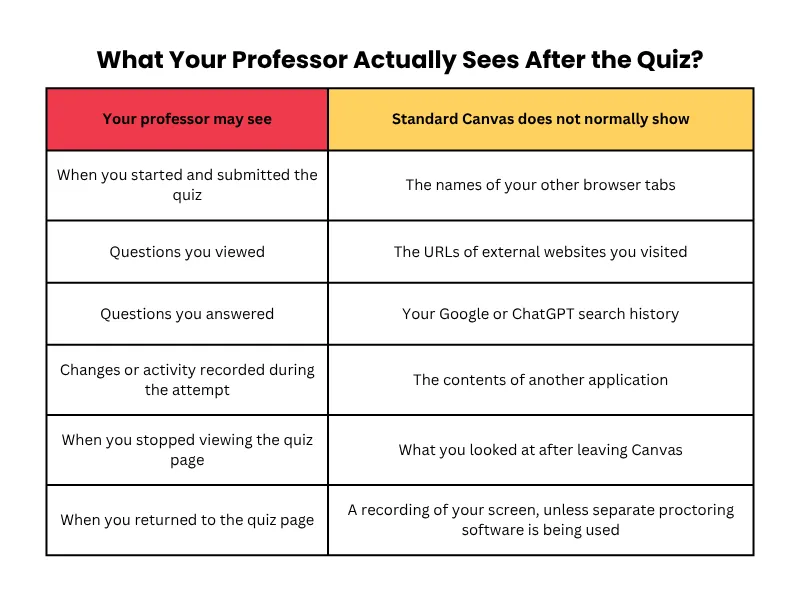
- Your open tabs & URLs: It has no idea if you have Google, Quizlet, or ChatGPT running in another window.
- Your search history or apps: It can’t see your desktop, active background apps (like Word or Discord), or copy-paste clipboards.
- Your camera or screen: Standard Canvas cannot record your video, audio, or desktop display.
- Secondary devices: It cannot tell if you are looking at your phone, iPad, or a second laptop next to your computer.
If you are considering hiring academic assistance for your coursework, verifying the legitimacy of an online help service is the first step in avoiding security traps.
What Canvas CAN See (The Action Log)
If you’re asking what can canvas see during a quiz without proctoring, the answer comes down to browser event logs. Canvas treats your exam page like a live document—it logs every interaction you make within the quiz box.
CANVAS QUIZ AUDIT LOG
| Timestamp | Recorded Student Action |
| 10:00:02 AM | Started quiz |
| 10:01:15 AM | Answered Question 1 |
| 10:02:40 AM | Stopped viewing the Canvas quiz page (Lost Focus) |
Here is what gets sent directly to your instructor’s backend dashboard:
When You Click Away from the Test Window
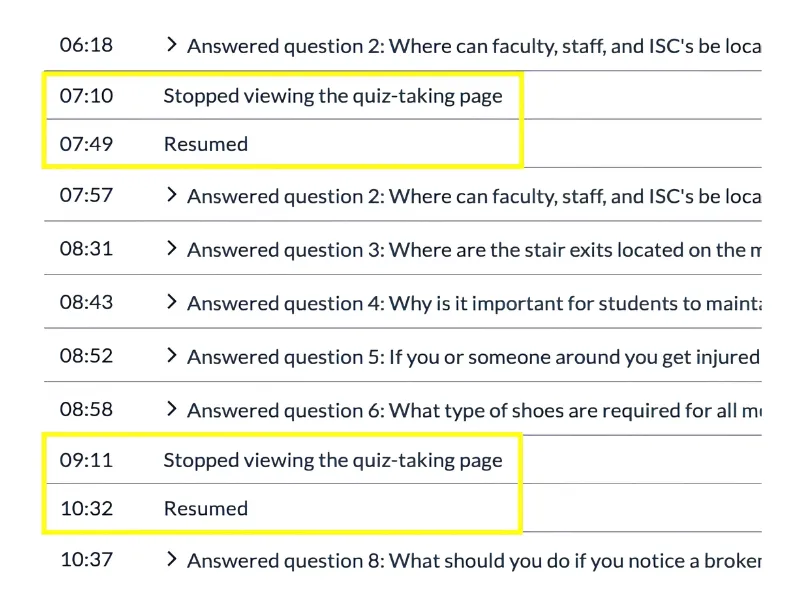
So, can professors see if you open a new tab on canvas? Not directly. Your professor won’t see Name_of_Tab.com, but Canvas will immediately log an event stating “Stopped viewing the quiz page” the moment your cursor leaves the exam window.
Can Canvas See Which Website You Visit During a Quiz?
If you are taking a normal Canvas quiz without proctoring software, your professor may see that you left the quiz page, but the standard quiz log does not tell them which external website you opened.
Time Spent on Each Individual Question
Canvas measures how long your page sits on Question 1 versus Question 2. If you spend 4 seconds on a complex 500-word math question and get it right, that speed flag stands out in the log.
Split Screen & Multi-window Setups
Students often wonder does canvas track split screen on desktop setups. If you snap Canvas to the left side of your screen and a PDF to the right, Canvas logs a “lost focus” event every time you click into the PDF side to scroll or highlight. To Canvas, clicking another window on the same monitor is the same as opening a brand-new tab.
Understanding Canvas Quiz Logs & The “Stopped Viewing” Status
If your professor mentions your “quiz log” after an exam, they are looking at the auto-generated timestamp report Canvas creates for every test attempt.
Understanding how this backend log works—and what triggers it—is key to knowing what your instructor can actually prove.
What Does Canvas Quiz Log Show to Professors?
When an instructor opens your test report, they see a chronological timeline of your actions.
Here is what what does canvas quiz log show to professors on their dashboard:
- Started quiz / Submitted quiz: Exact time and date stamps.
- Viewed Question X: Logged when Question X becomes visible on your screen.
- Answered Question X: Logged the moment an answer radio button or text field is filled.
- Stopped viewing the Canvas quiz-taking page: Logged when your browser window loses focus.
- Resumed viewing the Canvas quiz-taking page: Logged when you click back onto the test interface.
How “Lost Focus” Flags Get Triggered
Students constantly ask: does canvas track tab switching?
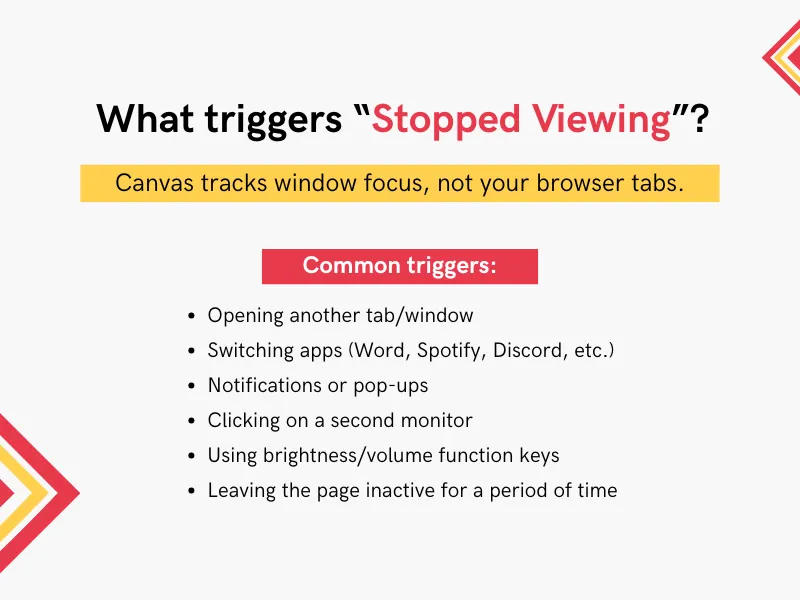
The technical answer is that Canvas doesn’t track tabs—it tracks window focus.
Canvas uses a standard web browser command (blur and focus events) to check whether its webpage is the active window receiving mouse clicks or keystrokes. A canvas quiz log lost focus event gets recorded whenever Canvas is no longer the primary active window on your device.
Here are 6 common triggers that cause a “Stopped Viewing” entry:
- Opening a new tab or browser window (clicking into another tab).
- Minimizing or switching applications (opening Spotify, Word, or Discord).
- OS notifications (low battery alerts, Windows updates, or Slack pop-ups).
- Clicking onto a second monitor (even if Canvas remains open on Monitor 1).
- Adjusting volume or display brightness using keyboard function keys.
- Inactivity / Auto-sleep (leaving the page untouched for over 30 seconds can trigger an idle auto-save state).
Why a “Stopped Viewing” Flag Is Not Proof of Cheating
If your professor sees a list of “Stopped viewing” logs, can they automatically fail you for cheating?
No. Canvas documentation explicitly warns universities that quiz logs are troubleshooting tools, not anti-cheating evidence. Because pop-up notifications, accidental misclicks, and accessibility software can trigger the same “lost focus” flag as opening a search engine, a log entry alone does not show where you went or what you did.
Without third-party proctoring software recording your screen or camera, a “Stopped Viewing” flag is circumstantial at best.
Standard Canvas vs. LockDown Browser & Remote Proctoring
While standard Canvas tracking relies entirely on basic browser activity, third-party proctoring applications fundamentally change what software can see and record during your test.
Understanding the massive difference between native Canvas, LockDown Browser, and full proctoring tools like Honorlock or Respondus Monitor helps you know what software is running on your device.
| Security Feature | Native Canvas (Standard Test) | LockDown Browser (Respondus / Chrome) | Full Remote Proctoring (Honorlock / Monitor) |
| Logs “Lost Focus” / Window Switch | Yes | Disabled or Blocked | Flagged instantly |
| Blocks Copying, Pasting & Printing | No | Yes | Yes |
| Prevents New Tabs & App Switching | No | Yes | Yes |
| Screen Recording | No | No (LDB alone) | Yes (full recording) |
| Webcam & Microphone Monitoring | No | No (LDB alone) | Yes (AI analysis or live) |
| Secondary Device & Audio Detection | No | No | Yes (AI voice and device detection) |
1. Standard Native Canvas (Unproctored)
- What it is: A basic webpage running in your normal web browser (Chrome, Safari, Firefox).
- Capabilities: Tracks inside-the-page mouse clicks, answer changes, question view timers, and “lost focus” events when you click away.
- Limitations: Cannot see external URLs, access your webcam/microphone, record your desktop screen, or stop you from opening new tabs or desktop apps.
2. LockDown Browser (Respondus LDB)
- What it is: A customized, isolated web browser application that replaces Chrome or Safari during your test.
- Capabilities:
- Forces full-screen mode and disables window minimizing, task switching, and secondary monitors.
- Blocks keyboard shortcuts (like Alt+Tab, Cmd+Tab, PrintScreen, Ctrl+C, and Ctrl+V).
- Prevents you from launching external desktop apps, messaging programs, or opening new browser tabs.
- Limitations: LockDown Browser alone does not record your webcam, audio, or desktop screen unless paired with a proctoring suite.
3. Remote Proctoring Software (Honorlock, Respondus Monitor, Proctorio)
- What it is: Advanced security software (browser extensions or system applications) that combines browser restrictions with active monitoring.
- Capabilities:
- Full Video & Audio Recording: Captures your webcam and microphone, using AI flag systems to detect eye movement, head turns, or background talking.
- Desktop Screen Capture: Records every pixel on your display throughout the test.
- AI Voice & Secondary Device Detection: Uses audio analysis for keywords (like “Siri”, “Alexa”, or “search”) and detects unapproved mobile devices or Apple Handoff signals on your local setup.
- Live Pop-In / Proctors: Human proctors can join your session live or review flagged AI moments after test submission.
How to Instantly Tell Which Setup Your Quiz Is Using
To avoid surprises on test day, look at how you launch the exam inside your course dashboard:
- If it says “Requires Respondus LockDown Browser”: Canvas will block you from opening the test in Chrome and force you to launch the dedicated Respondus desktop application.
- If it says “Honorlock” or “Proctorio”: You will be prompted to pass a pre-test system check (webcam verification, room scan, ID check) before the exam password auto-fills.
- If it opens directly in standard Canvas without extra steps: It is an unproctored Canvas quiz, meaning only native page activity and focus-lost logs are recorded.
Services that promise they can bypass Honorlock or Proctorio without detection often ignore major technical risks—check our guide on common online class service red flags before proceeding.
Myths vs. Reality: Common Student Questions
There are plenty of rumors on campus about how Canvas tracks students. Let’s clear up what Canvas actually detects versus what is just myth.
Myth 1: “Canvas detects copy-pasting during a test”
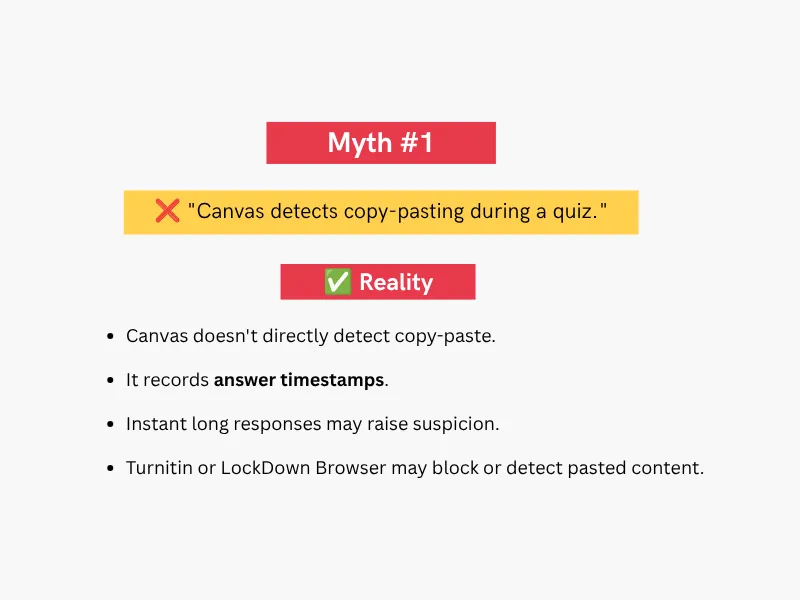
The Reality: Standard Canvas does not have a “clipboard listener” that sends an alert saying “Student copied text.”
However, Canvas logs answer timestamps. If a 300-word short-answer response appears in 0.5 seconds instead of being typed out line-by-line over several minutes, the sudden jump in answer length makes it obvious to your instructor that the text was pasted.
If the quiz uses Turnitin integration or LockDown Browser, right-clicking and pasting are either directly blocked or scanned for text matches against online databases.
Myth 2: “Canvas knows if I use dual monitors”
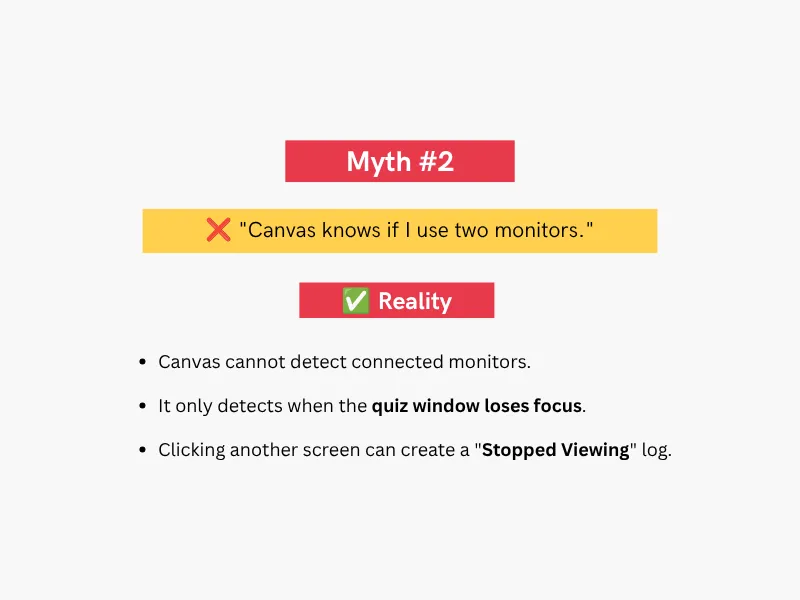
The Reality: Native Canvas running in a standard browser cannot detect secondary displays connected to your graphics card.
However, if Canvas is open on Monitor 1 and you click onto a document on Monitor 2 to scroll or type, Canvas loses window focus. That mouse click on Monitor 2 immediately logs a “Stopped viewing the quiz page” event on Canvas, even if the test remained full-screen on Monitor 1.
Myth 3: “Canvas tracks my activity on regular course pages, not just quizzes”
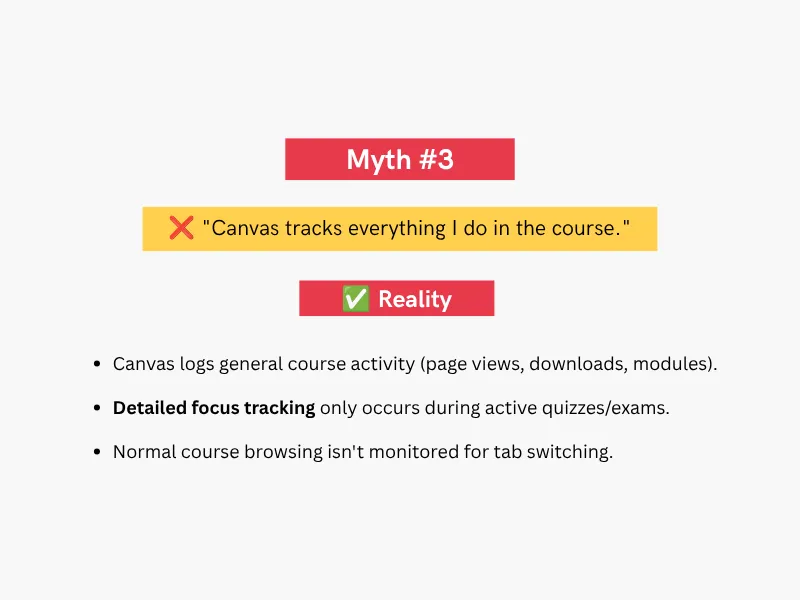
The Reality: Canvas records broad page views across your course dashboard (e.g., when you access modules, download PDFs, or view lecture slides).
However, the granular, second-by-second “Lost Focus” / “Stopped Viewing” action logging only runs inside active quiz and exam sessions. Browsing course modules or reading discussions does not track when you switch browser tabs.
Top-Rated Online Class Help Services with Transparent Safety Records
If you decide you need professional support for complex assignments, check our top-rated online class help reviews below to compare vetted platforms with transparent safety records and verified IP protocols:
Before choosing any online class help service, compare more than pricing or turnaround time. Look for clear privacy policies, secure payment methods, transparent refund terms, U.S.-compatible support hours, and information on how the service handles account access and personal data. No service can guarantee that using third-party academic assistance will comply with your college’s academic integrity policy, so students should review their institution’s rules before proceeding.
| Service | Risk Protection | Privacy & Account Security | Best For | Support / Availability | Full Breakdown |
| BoostMyGrade | High Safety Standards | Review privacy and account-handling policies before sharing login details | STEM & Complex Coursework | Check current support hours | Read full BoostMyGrade review here. |
| GoTakeMyOnlineClass | Residential IP Protocols | Compare login, device, and privacy practices | Full-Semester Class Management | Check current availability | Read our GoTakeMyOnlineClass review |
| BuyOnlineClass | Domestic Tutor Network | Review confidentiality and account-access terms | Tight Deadlines & Urgent Coursework | Check response times before ordering | Read our BuyOnlineClass review |
What to Check Before Choosing an Online Class Help Service
- Privacy policy: See how personal, academic, and payment information is stored or shared.
- Refund terms: Check what happens if work is late, incomplete, or does not meet instructions.
- Account access: Understand whether the service asks for LMS credentials and how those credentials are handled.
- Communication: Look for clear support channels and response-time expectations.
- Academic policy: Review your college or university’s academic integrity rules before using third-party assistance.
Conclusion
Native Canvas is a learning platform, not spyware. While it records basic page interactions and timestamped focus events, it cannot view your open tabs, track external URLs, or monitor your screen without third-party proctoring tools.
Before taking your next exam, check your course settings: if your test doesn’t require a proctoring extension or dedicated browser app, you are taking a standard, unproctored quiz.
Leave feedback about this